Performing a Test List
Selecting a test list
To perform a test list, first login to QATrack+ and then select the Choose Unit option from the Perform QA dropdown menu.
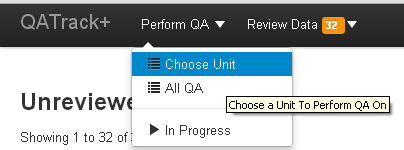
Choose Unit Menu Option
On the following page, clicking on the main button for a unit will take you to a page that lists all the test lists assigned to that unit.
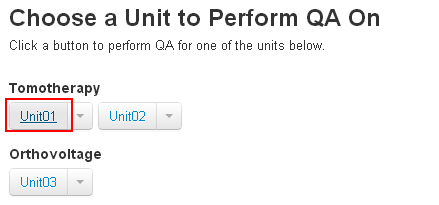
Select unit button
You can pre-filter the list by its assigned frequency by using the dropdown menu attached to the select unit button.
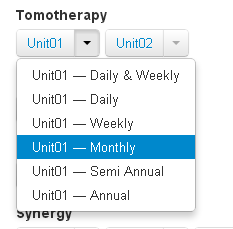
Select unit dropdown button
On the next page, all the test lists with the chosen frequency will be displayed along with relevant information about the last time that test list was performed and when the test list is next due on this unit.
Click on the Perform QA button next to the list that you would like to complete.
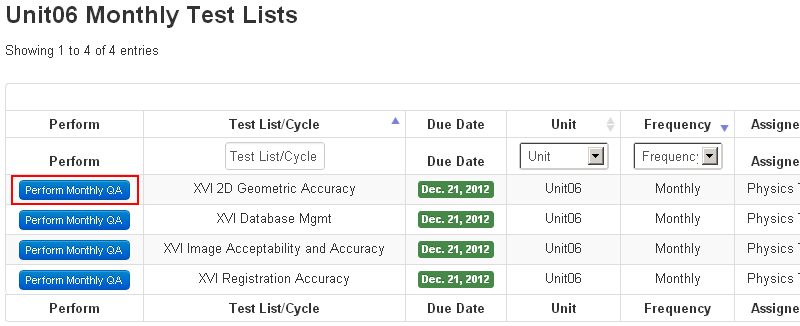
Choose a test list to perform
Performing a test list
An example test list is shown below. Details about all the features will given below but briefly, you can see all the tests completed and ready to be submitted. The shaded input boxes for the last two tests indicate that they are composite tests i.e. they are test values calculated based on the other 4 input values. Passing, tolerance and failing tests are displayed with a green, yellow or red status, respectively. Tests which have no reference or tolerance set for them are shown in blue.
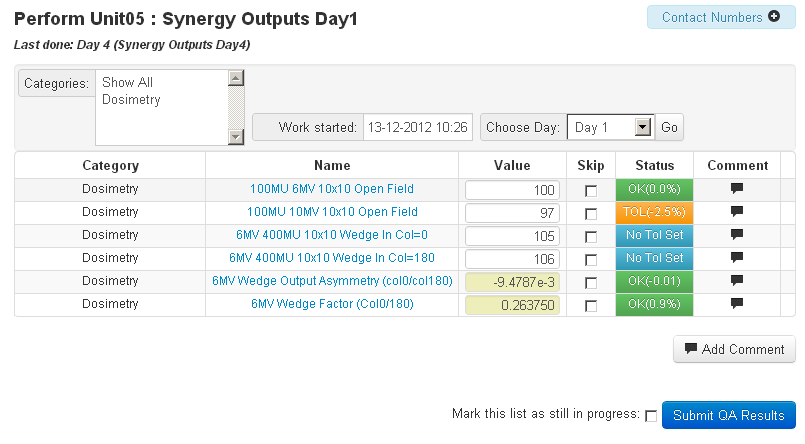
Example test list
Viewing test procedures
Clicking on the test name will display instructions or information about performing the test.
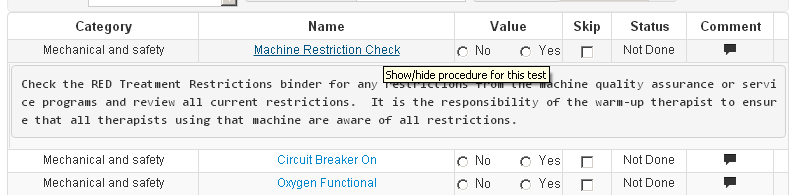
Embedded test procedure
Adding comments
You may add either test specific comments by clicking on the speech bubble beside the test or you can add a general comment for the whole test list by clicking on the Add Comment button at the bottom of the test list.

Skipping a test
Occasionally it may be required to skip a test when performing a test list. To accomplish this, check off the skip checkbox next to the test and add a comment (required) explaining why you are skipping the test.

Skipping a single test
Performing a subset of a test list
Some test lists may have tests from more than one category type. To selectively perform the tests from one or more categories, use the select box at the top of the list to choose the test categories you want to perform. Tests from categories that are not selected, will be hidden and marked as skipped with a comment explaining why.
Saving a test list to complete it later
If for some reason you need to finish a test list at a later time, you can click the Mark this list as still in progress checkbox next to the Submit QA Results button. When this box is checked, the test list will not be considered complete and will not be marked for review.
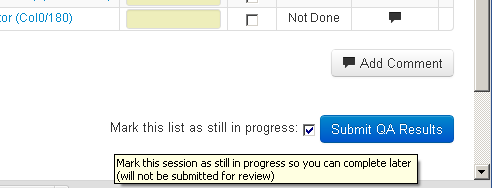
Save a test list to complete later
When you are ready to complete the test list, you can find it by selecting the In Progress menu option
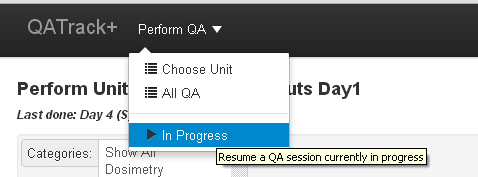
In progress menu
and then clicking Continue on your saved result.
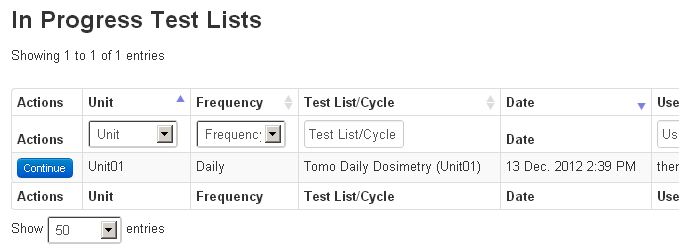
Continue an in progress test list